 minute read
Configure SAML
Configure Mobile Access Management to use SAML to provision and authenticate users against your Identity Provider, such as Microsoft Entra ID.
Depending on your organization, MAM takes the role of a Service Provider (SP) and you provide a system to serve as Identity Provider (IdP). No credentials are exchanged during the setup process. Instead, a trusted relationship is established between the services.
This authentication works to the MAM console and to the Launchpad app.
SAML keeps passwords internal to your network, making MAM more secure. SAML also leverages single sign-on, providing a better login experience for users.
The IdP is used only for user authentication. Authorization — assigning users to MAM roles — is still handled within the MAM console.
When a user launches MAM from their IdP, for example myapps.microsoft.com (Microsoft Entra ID), then the user will be generated at that time in MAM with the default role defined in the Admin settings.
-
There is only one default role for accounts automatically created this way, but a user’s role can be modified manually after the user is created.
-
To manually add new individual users and assign them to a specific role, go to the Team page.
-
When a user has no assigned role, they will see an error when attempting to log in with SAML.
 Provide IdP and SP Metadata
MAM (as the SP) and your Identity Provider (the IdP) need metadata from each other.
Open both consoles at the same time and import the metadata.
The metadata can be provided as an XML file, a metadata URL, and specifying the metadata values manually.
-
In the MAM console, go to Admin > SAML.
-
Switch the SAML Single Sign-on (SSO) setting to ON. The Configure SAML Single Sign-on dialog opens.
-
In the Identity Provider Display Name box, type a user-friendly display name for your Identity Provider (IdP).
-
In the Provide Mobile Access Management Metadata XML to your Identity Provider section, copy the file to your workstation.
-
-
In your IdP's admin console:
-
Export the IdP's metadata XML file to your workstation.
-
Upload the MAM metadata file saved from step 3.
Alternately, enter the MAM URL and metadata values manually and save the configuration.
-
If required, copy the IdP's metadata URL and/or metadata XML contents for use in MAM.
-
-
In the dialog, upload the IdP metadata XML or paste the metadata URL or XML contents:
-
To upload the metadata XML file exported from the IdP, click Upload XML file and browse to the location. Click Upload. The metadata XML file is uploaded to MAM.
-
To use a metadata URL from the IdP, click Paste Metadata URL and paste the URL.
-
To use the contents of the XML from the IdP, click Paste XML contents and paste the contents of the IdP's metadata XML.
-
-
Click Save.
Configure Additional SAML Settings
In the MAM console, configure additional SAML settings:
-
To set up automatic user creation, where new users are automatically assigned a role, switch the Auto-create user after SAML authentication to ON.
-
Select the default role to be assigned to the automatically created users.
-
-
To require SAML for the MAM console, switch the Require SAML for Mobile Access Management admin console to ON.
SAML can be mandatory for the MAM console or you can allow traditional usernames and passwords alongside SAML.
During testing, customers typically keep SAML optional during testing, then switch to required for production use.
-
In the Default role for auto-created users list, select the default role to assign to the users that are automatically created.
-
This role is only assigned at this organization level.
-
You can modify the role at any time.
-
-
To require SAML for MAM Launchpads, switch the Require SAML for Launchpads to ON.
Many customers continue using username/password for Launchpads, even when the MAM console uses SAML, because Launchpads configured for SAML prompt for user/password every time the app launches. This interrupts automatic start. On the other hand, Launchpad configured without SAML downloads a token and launch without a prompt.
-
In the Maximum authentication lifetime (in hours) box, type a value between 1 and 168 to specify the amount of time (in hours) users have before they must reauthenticate.
Imprivata recommends a setting of less than 72 hours.
Manage the SAML Certificate
Organizations can use the default MAM SAML certificate. To make refreshing this certificate easier, you can set an organization-specific certificate.
If this is changed, the Identity Provider (IdP) must refresh the MAM metadata XML file immediately.
Create a Certificate
Creating a certificate generates a new service provider automatically; by default it will be inactive. You must copy the MAM metadata XML into your Identity Provider (IdP) before activating the new certificate.
Activating a new certificate deactivates the currently active certificate. Only one certificate may be active at a time.
-
In the MAM console, click Create Certificate.
-
In the Active column, click Active for the certificate you wish to activate. The Make Certificate Active? dialog opens.
-
Click the URL to copy the MAM metadata XML for use in your IdP before activating the new certificate.
-
In your IdP admin console, update the MAM metadata XML and save.
-
In the MAM console, click Make Active to activate the certificate.
Delete a Certificate
In the SAML Certificate list, click the delete icon next to an inactive certificate and confirm the deletion.
Certificate Expiration
Beginning 60 days before the SAML certificate expires, the MAM console displays an alert warning of the expiration. The banner is only displayed when the active SAML certificate is expiring.
Configure Directory Group Role Mapping
This feature is supported in 7.5 UAT.
At the parent organization, assign MAM console roles from SAML group claims during login.
-
Role updates occur only on SAML login. Changes to group membership are not reflected until the next login.
-
The available roles follow the normal MAM roles/permissions hierarchy (Console Admin, Device Manager, Launchpad Only and so on).
-
If your organization owns both MAM and MDA products, configure the directory group role mappings separately for each product. Use the product switcher in the top navigation to select the Mobile Access product.
-
The Organization column in the mapping table is visible only when the parent organization has child organizations.
Requirements
-
SAML is enabled for the parent organization in MAM.
-
In your IdP, you already created the necessary group claims to be mapped to MAM roles.
The group claims lets you determine which group memberships your IdP will include in the SAML assertion
-
Only SAML group claims with human readable group names are supported. IdP specific group IDs are not supported.
-
Group matching is case-insensitive and requires an exact string match.
-
Configure up to 1000 group mappings per organization.
Map the Directory Group to Roles in MAM
-
On the Directory Group Role Mapping tab, switch the Directory Group Role Mapping setting to ON. A group mapping table displays.
-
Click Add New Directory Group Mapping. The group mapping dialog opens. Enter the following information:
-
Group Name: Enter the exact directory name as it appears in your IdP.
-
Role: Select a role from the list to assign to the group.
-
Organization: If your organization has child organizations, search for and select the organization this mapping applies to. If your organization has no child organizations, the Organization box is not displayed.
-
Optional Inherit and apply role to sub-organizations: To apply the mapping to users in child organizations, switch this setting to ON.
-
-
Click Save.
Example - Microsoft Entra ID
In Microsoft Entra admin center, go to Enterprise applications > MAM enterprise application > Single sign-on > Attributs & Claims > Add a group claim.
For more information, see Microsoft's documentation.
Edit a Group Mapping
-
In the group mapping table, locate the mapping you want to edit.
-
Click Edit for that mapping.
-
In the Edit Group Mapping dialog, update the fields as needed.
-
Click Save.
Validate the Groups Being Sent for a MAM User
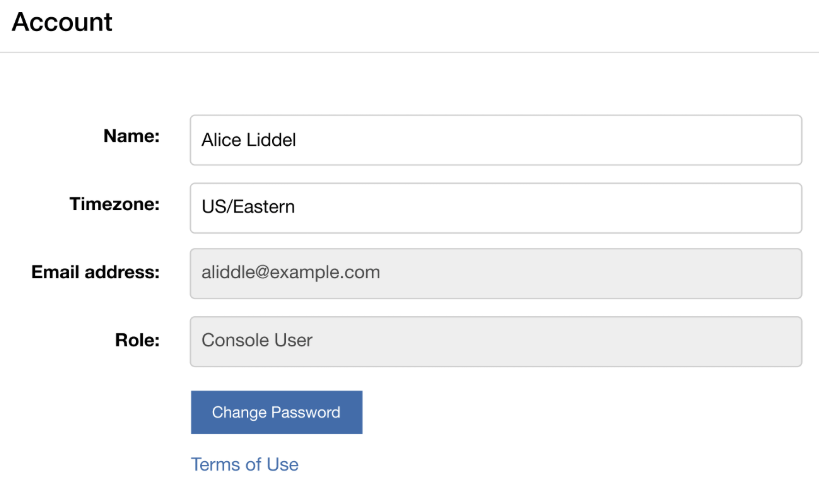
View the User Account page to validate the user groups being sent for a MAM user.
Delete a Group Mapping
-
In the group mapping table, locate the mapping you want to delete.
-
Click Delete for that mapping.
-
Confirm the deletion when prompted.
Deleting a mapping does not remove the MAM roles already assigned to users. Users retain their current role until their next SAML login, at which point their role is recalculated based on remaining active mappings.
Expected Behavior of New User Invitations
MAM handles new user creation differently for SAML-enabled organizations. The differences are visible on the Team page.
-
The Reset Password button is hidden, since passwords are managed by your IdP.
-
The system does not send an email to the new user. You are responsible for notifying new users with instructions on how to log into their MAM account.
-
You can specify a default role to be assigned to new users added to the organization. This role is only assigned at this organization level in your parent/child organization tree.


