minute read
App Logout Methods at Device Check In
Mobile Access Management supports the logout from many commonly used apps. As support for new apps is added, MAM also allows you to add your own custom integrations.
Apps Supporting Mobile Access Management
Imprivata maintains a list of apps supporting Mobile Access Management
Supported Logout Methods
Mobile Access Management supports the following logout methods:
| Logout Method | Mobile Device OS | Notes |
|---|---|---|
|
Force quit app |
iOS | Forcibly closes any app like Epic Rover |
| Universal Link Callback | iOS |
Recommended |
| x-callback-url | iOS | See x-callback-url.com |
| x-callback-url for Cisco Webex |
iOS Android |
See Cisco Webex See Cisco Webex |
| Interapp callback | iOS | Use for other callback mechanisms using Interapp-style (“app://…”) links |
| Clear app data | Android | |
| Clear app cache | Android | |
| Force stop app | Android | |
| Clear cache and stop | Android |
Add a New Logout Action
To add a new app logout action:
-
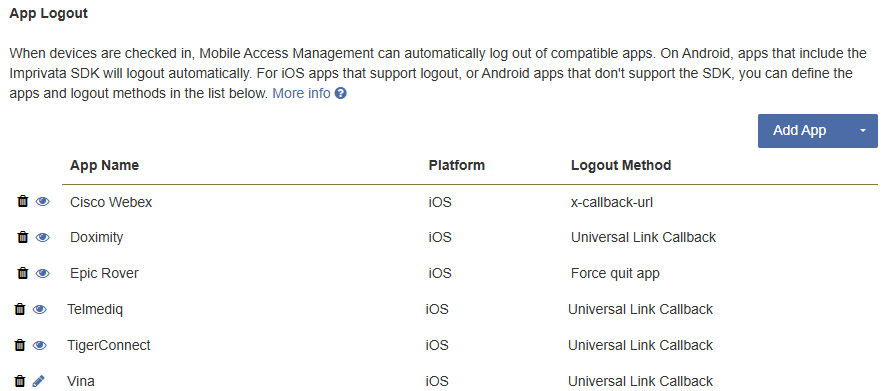
In the MAM console, go to Admin > Check In > App Logout.
-
Your organization's configured app logout schemes are displayed.
Click to enlarge
-
Click Add App to add a new app with a logout action.
-
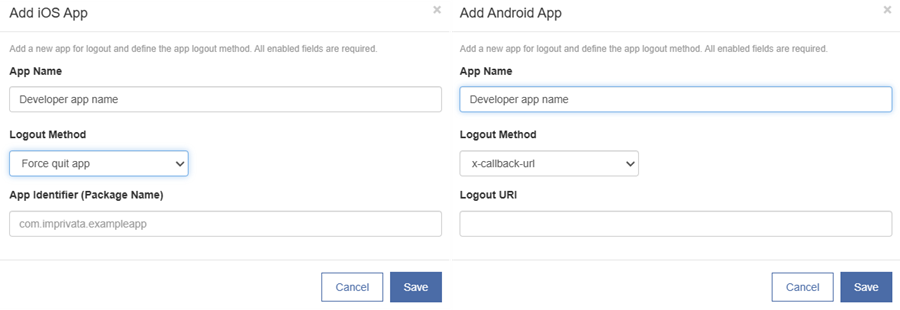
Select either Android app or iOS app. Specify the following information:
-
App Name: This field is for your own purpose, but Imprivata recommends using both the app developer and app name to uniquely identify the app.
-
Logout Method: Set this according to the logout method supported by your app and your device OS (iOS or Android).
-
Force quit app
-
Universal Link Callback
-
x-callback-url
-
Interapp callback
-
Clear app data
-
Clear app cache
-
Force stop app
-
Clear cache and stop
-
-
App Identifier (Package Name): Enter the app identifier (package name) when you select one of the methods: Force quit app, Clear app data, Clear app cache, or Force stop app.
-
Logout URI: Enter the app’s appropriate logout URL or URI here.
-
Universal Link Callback: Enter a URL to the app’s associated domain. The URL must begin with "https://" and should include the path to the app’s logout action.
IMPORTANT:Do not include "ulc-success" or "ulc-failure, because MAM will add these as needed.
-
x-callback-url: Enter the URI to the app’s logout callback. These will not begin with "https://", but with a URI scheme specific to the app, such as "your-app://x-callback-url/…".
Do not include "x-success" or "x-failure" as MAM will add these as needed.
-
Interapp callback: Enter the app name and not "https://".
The Interapp callback URI must include the string "[CALLBACK]" somewhere in your URI. MAM replaces that token with an appropriate callback URL.
-
-
-
After you add the new app logout, select the option in your Workflow's Check In actions.
Built in apps can be removed from Check In actions to keep the list short and applicable only to apps used in your environment, but can easily be re-added by selecting + from the Apps Removed from Check In workflows section.
Check In Device Actions
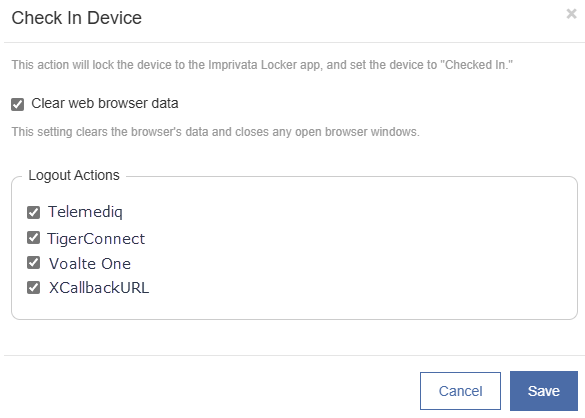
The options available for Check In Device actions depend on the platform of your devices - iOS or Android.
 iOS Devices
For iOS devices, the Check In Device Workflow action will launch the Imprivata Locker app, and lock the device. The action supports several options.
Disable Local Keychain
Disables the local keychain to prevent users from inadvertently storing passwords on the device.
Requires MAM Launchpads running 7.0 or later.
This setting is enabled for all new and existing workflows.
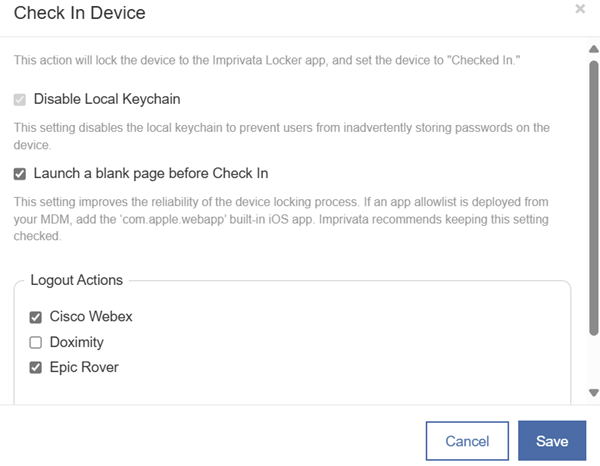
Logout Actions
Before locking the device, MAM can perform one or more actions on the device to log out of apps.
Imprivata uses the Universal Link Callbacks standard for logging out of apps. MAM can log out of any app that follows this standard.
Imprivata maintains a list of apps supporting Mobile Access Management on our site.
The following apps are some examples of different logout types:
-
Apps fully supporting Universal Link Callbacks
-
Telmediq
-
TigerConnect
-
Vocera Vina
-
-
Apps partially supporting Logout (no MAM configuration required):
-
Mobile Heartbeat MH-Cure and Banyan — for best results, enable MHB’s Logout when Connected to Power setting. Reach out to Mobile Heartbeat support for assistance in configuring this setting.
-
-
Apps supporting an older standard, requiring additional taps on first use:
-
Cisco Webex
-
Voalte One
-
Launch a Blank Page Before Check In
Improves the reliability of the device locking process.
-
For devices running iOS 26.x, select Launch a blank page before Check In.
-
In newly-created Workflows, the setting is not selected.
-
If you deploy an app allowlist from your MDM, add the 'com.apple.webapp' built-in iOS app.
Android Devices
For Android devices, the Check In Device workflow action will launch the Imprivata Locker app, and lock the device. The action supports several options.
Clear web browser cache
Clears the device's browser cache and closes any open browser windows.
Logout Actions
Imprivata maintains a list of apps supporting Mobile Access Management.