 minute read
About AppConfig
AppConfig is a standard for mobile devices that allows your MDM to set options for your mobile apps.
The instructions for setting AppConfig key/value pairs will vary based on your MDM server and the platform of your devices (iOS or Android).
AppConfig Key/Value Pairs
The Imprivata Locker app supports AppConfig key/value pairs. Most organizations will leave these at the default settings, except for UnlockPIN and enrollAndroidPIN.
iOS AppConfig Key/Value Pairs
| Key | Type | Default | Description |
|---|---|---|---|
| ActiveBrightness | integer (may also be referred to as a number) | 100 | 0-100. Screen brightness when the Imprivata Locker app is woken up. |
| EpicShowEula | boolean |
(none) |
Show or hide the Epic end user license agreement (EULA) screen. Valid values: true, false false - hides the EULA screen for newly-provisioned devices. |
| EpicMobileDeviceID | string | (none) |
Sets a unique MDM device ID for use with Epic API logout. |
| EpicMobileDeviceIDAppName | boolean | (none) |
Enables the Epic App name to be appended to the unique install ID. This allows for different app installations running on the same device to be uniquely identified. |
| InterappPreDelay | integer (may also be referred to as a number) | 3 | Seconds to wait after receiving a Lock command and before starting any logout routines. |
| InterappPostDelay | integer (may also be referred to as a number) | 0 | Seconds to wait after finishing the interapp API routine and before entering Single App Mode. |
|
MaxInterappAttempts |
integer (may also be referred to as a number) | 8 | Number of retries before attempting app logout during interapp API routine |
| UnlockPIN | string | (none) |
Sets the emergency Unlock PIN of 4 to 8 digits. |
Epic is a registered trademark of Epic Systems Corporation.
Android AppConfig Key/Value Pairs
| Key | Type | Default | Description |
|---|---|---|---|
| ConfigFlags | string | enrollAndroidPIN |
Allows you to use Android passcodes on Android devices. Supported by:
|
| EpicShowEula | boolean |
(none) |
Show or hide the Epic end user license agreement (EULA) screen. Valid values: true, false false - hides the EULA screen for newly-provisioned devices. |
| EpicMobileDeviceID | string | (none) |
Sets a unique MDM device ID for use with Epic API logout. |
| EpicMobileDeviceIDAppName | boolean | (none) |
Enables the Epic App name to be appended to the unique install ID. This allows for different app installations running on the same device to be uniquely identified. |
| UnlockPIN | string | (none) | Sets the emergency Unlock PIN of 4 to 8 digits |
Example - Set the Android Passcode
In the following example, set an AppConfig key/value pair to enable the use of Android passcodes to unlock the device.
Alternately, configure a Locker Custom Option to use Android passcodes.
 Omnissa Workspace ONE
-
In the Workspace ONE UEM console, specify the user groups that will receive the Imprivata Locker Android app.
-
On the distribution screen, name the assignment and in the Assignment Groups field, enter the name of the user group or smart group.
-
Configure how to deploy the Imprivata Locker app. Select Auto.
-
-
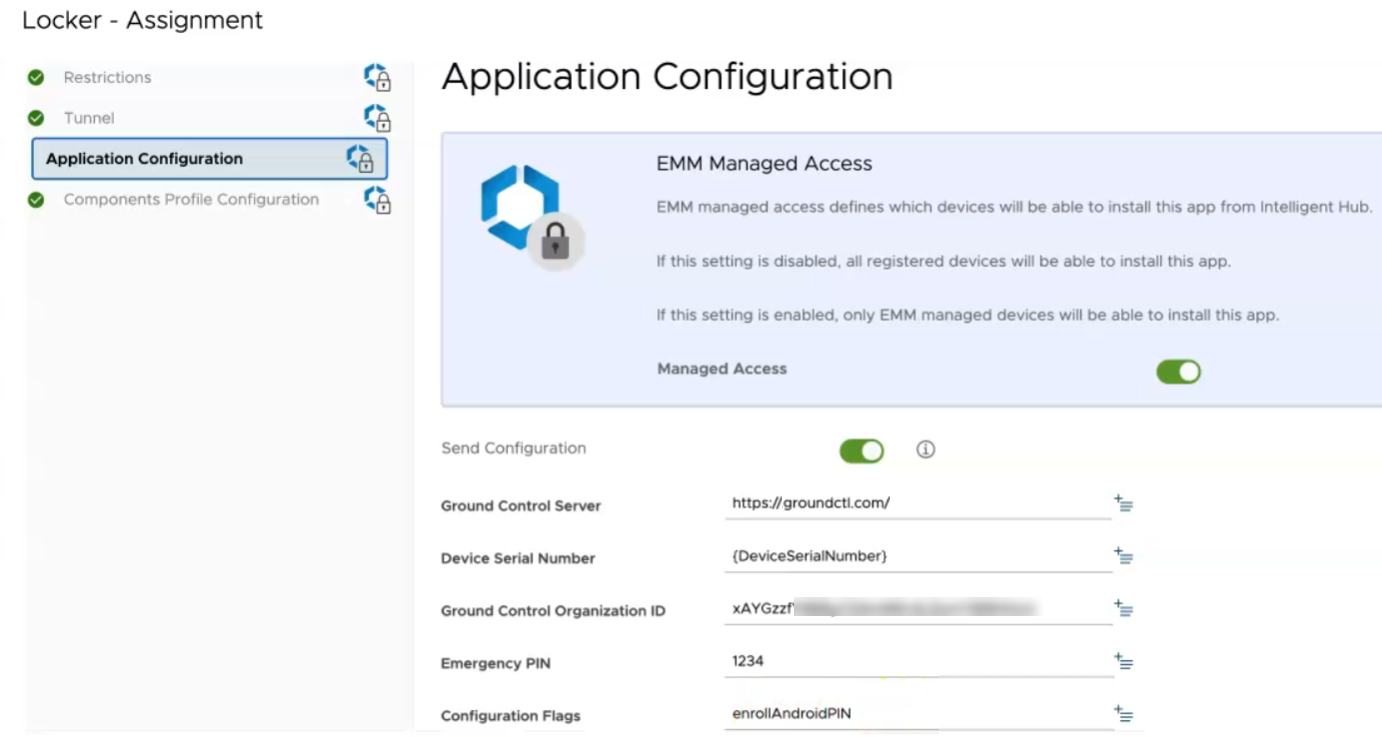
From the menu on the left, click Application Configuration.
-
Add a new key for the AppConfig and set a Value: Configuration Flags and enrollAndroidPIN.
Click to enlarge
-
Save the change, then click Save and Publish, then Publish.
Example - Set the Emergency Unlock PIN
In the following examples, set AppConfig key/value pairs to set the emergency Unlock PIN for the Imprivata Locker app.
Omnissa Workspace ONE
-
Visit Apps & Books > Applications > Native > Purchased.
-
Click the checkbox next to the Imprivata Locker app, then click Assign.
-
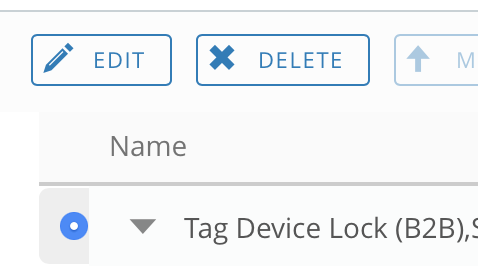
Select the radio button next to the assignment you want to edit, then click Edit.
Click to enlarge
-
Scroll to the bottom of the assignment dialog, and enable Send Application Configuration.

-
Add a new key for the AppConfig, set the correct Value Type, and set a Configuration Value.

-
Save the change, then click Save and Publish, then Publish.
NOTE:It may appear there are no changes made, but the changes will still propagate to devices.
Microsoft Intune
-
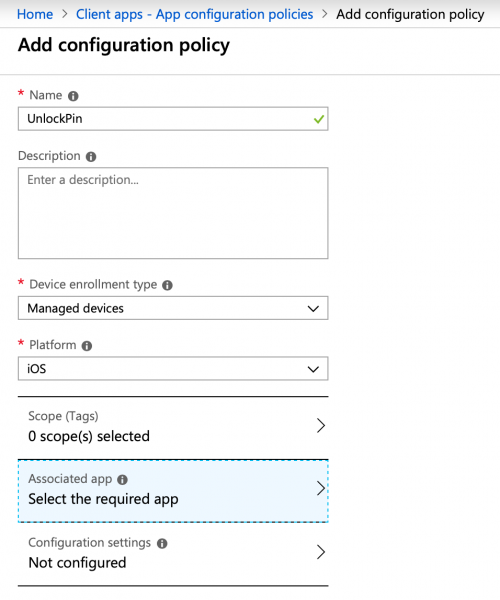
Go to Client Apps > App Configuration > Policies + Add.
-
Enter a policy name, such as Unlock PIN.
-
Set Device Enrollment Type to Managed Devices.
-
Set Platform to iOS or Android, according to the platform of your devices.
Click to enlarge
-
Select the app to configure from the Associated app.
-
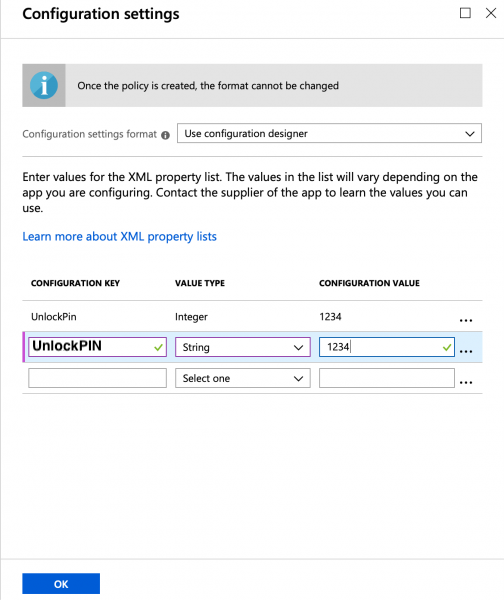
Click Configuration settings and select Use configuration designer from the Configuration settings format drop-down.
-
Add the configuration key name, the value type and the configuration value.
Click to enlarge
-
Click OK at the bottom of the tab then Add to finish.
NOTE:AppConfig update delivery times can vary depending on your MDM system.
For quicker AppConfig update delivery in Intune, an admin should trigger configuration synchronization in the Intune app.
Ivanti Neurons (MobileIron Cloud)
-
Go to Apps > App Catalog and click to select the app to configure.
-
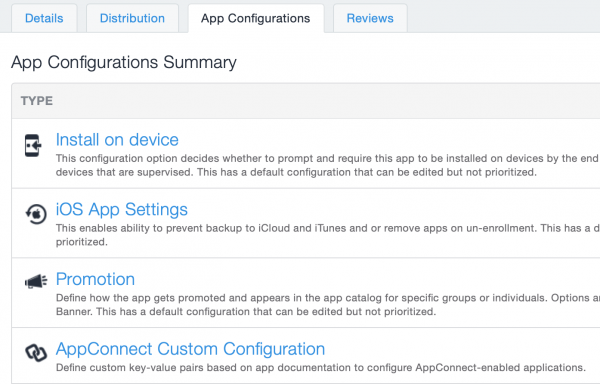
Click the App Configurations tab and select AppConnect Custom Configuration. Then click Add.
Click to enlarge
-
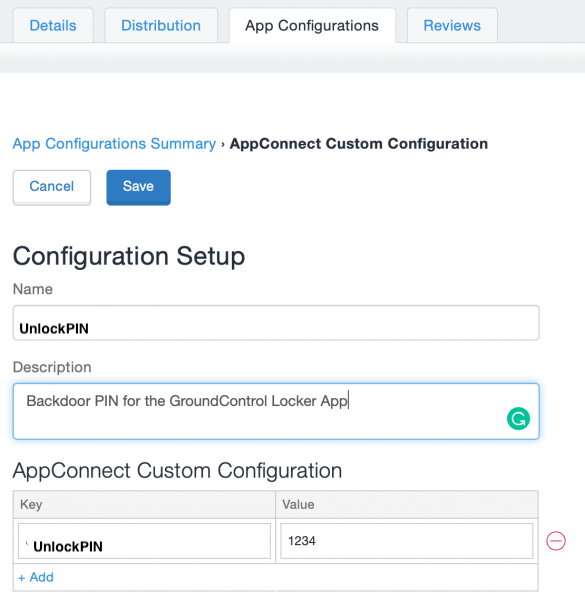
In the Configuration Setup, enter a configuration name, such as "Locker Unlock PIN".
-
Under AppConnect Custom Configuration click Add.
-
Set the configuration key and value.
Click to enlarge
-
Distribute the App Config as applicable, and click Save to finish.


