 minute read
Check In Devices with Depleted Batteries
Download a PDF of the guide.
Applies to iOS devices.
The Apple Internet Connection Sharing service allows iOS and iPadOS devices to shared the internet connection of the Mac they are connected and paired with. The device will use this network connection rather than its built in Wi-Fi connection.
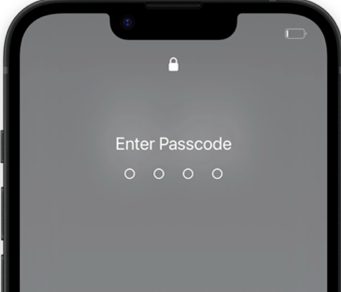
This feature allows devices that have been returned with a depleted battery and a passcode set to be automatically checked back in with Mobile Access Management.
This feature is only available for macOS Launchpads.
Requirements
Take note of the following requirements:
-
macOS Tahoe 26.5 or later.
-
Launchpad 7.5 UAT or later.
Setup
-
Download the MAM Launchpad installer from the MAM console.
Install and register the Launchpad.
Installation can be performed interactively or via MDM.
-
Enable macOS Internet Connection Sharing.
-
Open macOS System Settings and go to General > Sharing.
-
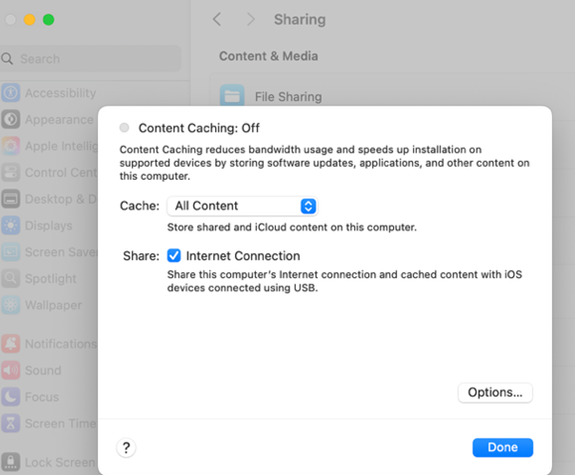
Enable Content Caching, and select to allow Internet Connection Sharing (ICS) with paired iOS devices over USB.
ICS with Content Caching automatically connects any paired iOS device the network connection of the Mac.
Use a wired Ethernet connection from the Mac to your network.
Click to enlarge
-
Under Options, limit the Cache Size to prevent filling the entire storage volume.
NOTE:iOS OS updates performed via MAM use the Launchpad’s own cache. Only OS and app updates performed via over-the-air MDM commands will utilize the Apple Caching Service.
-
Expected Behavior
Depleted Battery Device Return
-
An iOS device is returned to the Launchpad with a passcode set from the last user to check the device out, and the device is powered off or has been rebooted. The device will not connect to Wi-Fi until the passcode is cleared.
-
When the device is connected via USB, it will automatically power on when it has enough charge to boot.
-
Launchpad will automatically pair the device with macOS using the MAM supervision identity, and the device will connect to Internet Connection Sharing services from macOS.
-
MAM will clear the device passcode successfully, launch the Locker app, and check in the device.
Regular Check In
-
An iOS device is returned to the Launchpad with a passcode set from the last user to check the device out, and the device has not been powered off or rebooted. The device has an active Wi-Fi connection during connection to the Mac Launchpad.
-
When the device is connected it will automatically pair with macOS.
-
MAM will clear the device passcode successfully, launch the Locker app, and check in the device.
Common Questions
Is Apple Configurator required for this workflow?
No. Launchpad 7.5 has support for automatic device pairing, no longer requiring Apple Configurator to be installed or running.
Will the device pair if it is placed in a different dock than the one used for provisioning?
Yes. The device will pair with any Launchpad configured, as described above.
Do I have to manually enable Internet Connection Sharing for each connected device?
No. After it is configured, macOS shares the Internet connection with any USB connected device.
Will this work if my network connection uses 802.1X for authentication?
No. macOS does not allow sharing an Internet connection from an interface that is 802.1X enabled.
Known Issues
Returning a device with Wi-Fi turned off and passcode set does not check in successfully.
If Wi-Fi was manually disabled and a passcode was set before the device is returned, the device connects and pairs to macOS; however, Internet Connection Sharing does not work on the first connection.
Resolution
To resolve the issue, the device must either be disconnected and reconnected physically, or the Mac rebooted.
The device will then connect to ICS and check in successfully.
Prevention
Users should be disallowed by MDM policy to disable Wi-Fi on shared devices. This will prevent this scenario.


