 minute read
Clearing Passcodes
When you are enforcing passcodes in your organization and using Mobile Access Management, consider the following, especially when using Check Out Workflows.
Unfortunately, MAM cannot automatically connect to passcode-locked devices or clear the device’s passcode. When devices are connected to MAM but are simply unlocked, without clearing the passcode, MAM cannot work reliably, and this workflow is not supported.
However, if the device has an active internet connection, MAM can use the MDM to clear the passcode over the air.
MAM can do this in two ways that together address most scenarios:
-
Clear Device Passcode via MDM when device is not pairing with a Launchpad.
-
Perform MDM Command Workflow action to clear a device’s passcode.
Considerations
Both of these methods have some important things to consider:
-
Your MDM must install a profile on all shared devices to disable USB restricted mode.
-
Clearing passcodes does not work on rebooted iOS devices unless they have a cellular connection, or if they are connected to a Mac and use network tethering. The iOS device can pair with any Mac Launchpad configured according to the procedure in Check In Devices with Depleted Batteries.
-
Clearing passcodes requires the iOS device to have an active network connection. For devices that cannot connect to Wi-Fi after being powered off or restarted, a configured macOS Launchpad can provide network connectivity through Internet Connection Sharing (ICS) over USB, allowing MAM to clear the device passcode.
-
Updating iOS on devices with passcodes is supported only when devices are erased.
-
If enforcing passcodes via MDM, Imprivata recommends setting this profile up during Check Out, not during Check In.
Clear Device Passcode via MDM When Device is Not Pairing
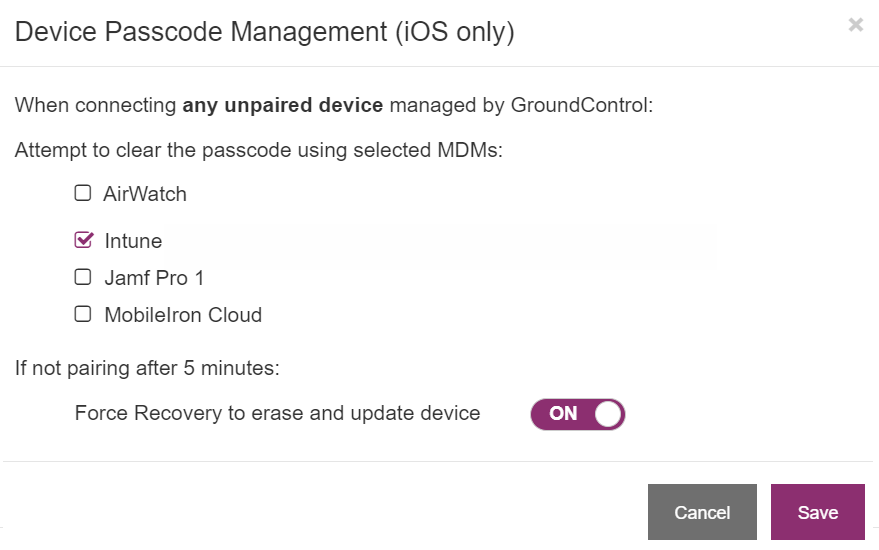
When enabled, MAM detects when a device is connected to a Launchpad but is not pairing. When this condition occurs for 5 seconds, MAM will send an MDM command to clear a device’s passcode.
Improved Handling
Beginning with MAM 7.4, the system now reliably completes a check-in workflow when the device locks mid-workflow because of the side button, the Require Passcode grace period expiring, or the Auto-Lock inactivity timer expiring. No administrator action is required to enable this behavior.
Beginning with MAM 7.3.1, the system improves how it handles passcode-locked devices.
-
When devices are not pairing, MAM can clear passcodes via MDM, as before.
MAM sends a Clear Passcode command only to devices that have a passcode set, preventing spurious Clear Passcode commands on devices that do not.
-
MAM will no longer clear passcodes from personal devices. Only devices managed by MAM, with an Active or Retired MAM status, are considered for password clearing.
-
MAM waits up to 5 minutes for a passcode to clear, instead of the previous default of 1 minute.
If still unpaired after 5 minutes, MAM can automate the force recovery – erasing and updating devices. This is helpful for Wi-Fi only devices that are password-locked and have not unlocked since the last restart.
Click to enlarge
Enable Clear Device Passcode via MDM Globally
To enable globally:
-
In the MAM console, go to Admin > Launchpads > Clear Device Passcode via MDM — when device is not pairing. The page displays the MDMs you have set up with API support that also support this feature.
-
Enable the MDM or multiple MDMs to have MAM send the "Clear Passcode" API when devices are connected but not pairing.
Enable Per Launchpad
To target certain Launchpads or devices only, create a Workflow and automate it using rules.
-
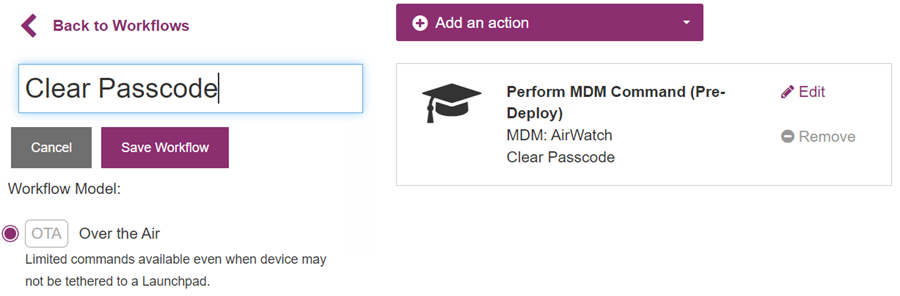
Create an Over the Air (OTA) Workflow that includes a Clear Passcode action.
-
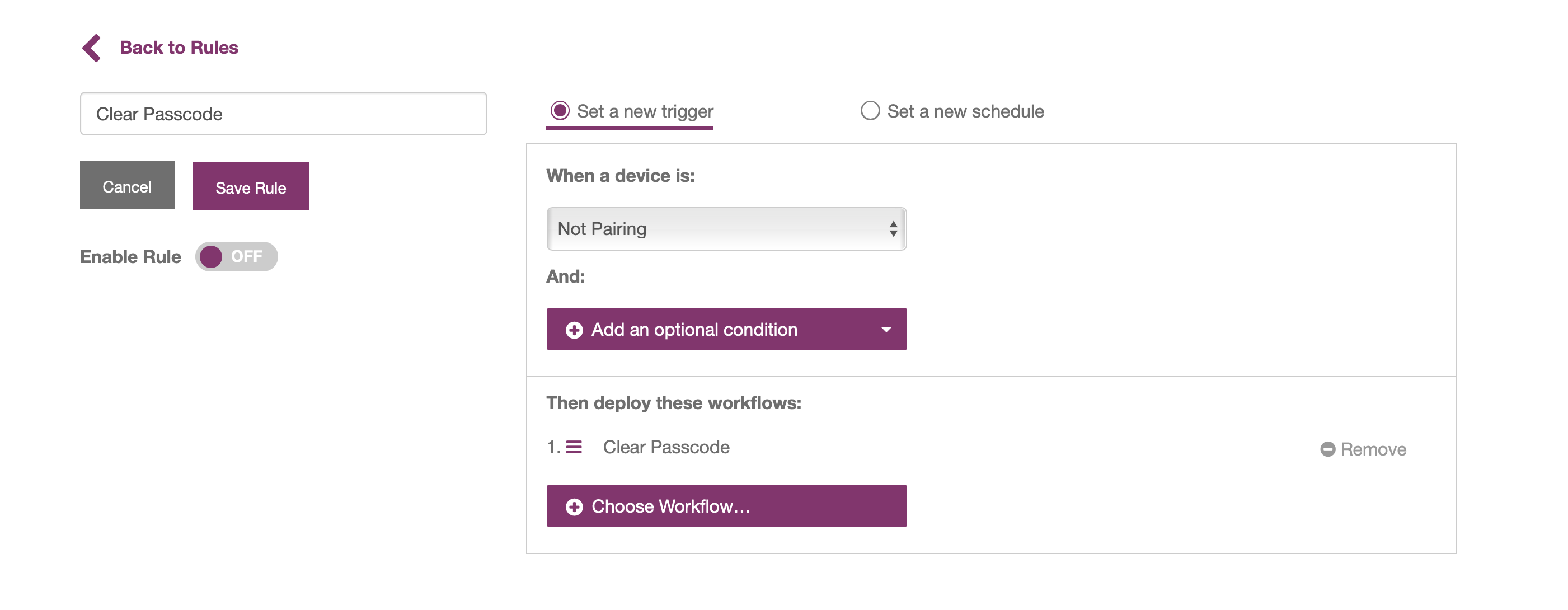
Create an automation rule that targets Unpaired Devices.
-
Select the OTA Workflow you created in step 1.
-
Save and enable the rule.
Perform MDM Command Workflow Action to Clear Passcode
Under certain conditions, devices with passcodes will still pair with Mobile Access Management.
For example, the user may connect the device while it is unlocked.
You must clear the passcode in your Workflow in any of the following cases:
-
You will check in the device for another user.
-
You will update iOS on this device (this feature may brick the device if it has a passcode).
-
You are performing any actions other than Erase.
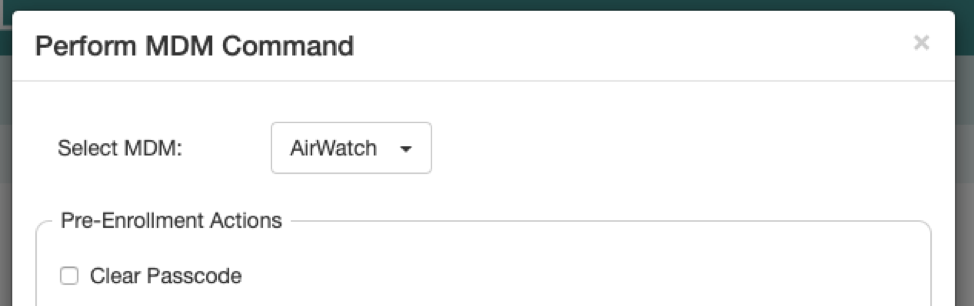
To clear a passcode without an erase action, you can use the Perform MDM Command Workflow action with supported MDMs to enable a Pre-Enrollment action to clear a device’s Passcode.
This action will be run before other Pre-Enrollment actions such as Delete Device from MDM.
If your automated Workflow includes an Erase action, you do not need to clear the passcode in the Workflow. Erase will clear the passcode.


